Add your company logo to your email signature

Instructions

  1. Find the logo you need.
  2. Click the teal button to copy it.
    Button
  3. Go to Outlook. Select Settings on the top right.
    Settings
  4. Under Settings click Account, then Signatures.
  5. Click + New signature or you can edit the current Outlook Signature.
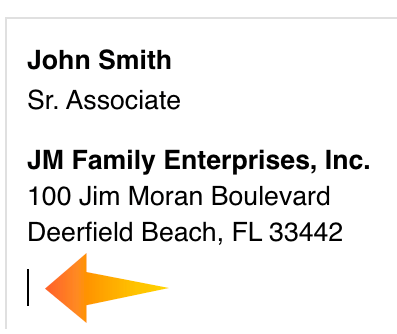
  6. Inside the editable text box, add your name, title, company, street address, city, state and zip code. Hit return to place your cursor where the logo will appear under your email signature.
    Signature
  7. Paste in your signature. To paste, press and hold down Ctrl Key and then press V. You may also Right Click and Select Paste.
  8. The logo will now appear in your signature.
    Paste
  9. Select the options below your signature to automatically add your Outlook signature to your emails.
  10. Click Save at the bottom right.
    Save
    Your updated signature will now appear on all emails you send.

These signatures are suggested, but optional. They work best with your Outlook Web App (browser version). Sizes may change depending on your application and/or device and manual adjustments may be necessary.


JM Family Enterprises
JM Family FaceBook JM Family Instagram JM Family Linkedin #WeAreJMFamily
JM Family Enterprises
Southeast Toyota
Southeast Toyota Linkedin
JM&A Group
JM&A Group Linkedin
JM Lexus
JM Lexus FaceBook JM Lexus Instagram JM Lexus Youtube JM Lexus Linkedin
SET Finance
Southeast Toyota Finance FaceBook Southeast Toyota Finance Linkedin
World Omni Financial Corp.
Home Franchise Concepts

Specialty Signatures

JM&A Group | MyGapClaim
JM&A Group | Inspect Now
JM&A Group | Consulting Services
Fidelity Insurance Agency
Southeast Toyota Dealer Services
HR NOW
Pride Network